A 14-day terminal practice plan for beginners
This plan builds comfort through small outcomes you can verify. Use macOS or Linux, work in a disposable folder, and spend about 15 minutes on each day.
Reviewed by the Terminaster editorial team · Updated
What you will take away
- Practice in a dedicated sandbox before working on important files.
- Move from navigation to inspection, search, composition, and real workflows.
- Predict each result before pressing Enter.
- Finish by rebuilding one useful workflow without notes.
Set up one safe practice folder
The terminal becomes less intimidating when mistakes are cheap. Create a dedicated folder and keep the first week inside it. Before a command that changes files, run pwd and ls so you know where you are and what the command can touch.
The examples below assume a Unix-like shell on macOS or Linux. Windows users can run them in WSL; native PowerShell uses different commands and syntax.
Build the sandbox
mkdir -p ~/terminal-practice/{notes,archive}
cd ~/terminal-practice
printf 'red\ngreen\nblue\n' > notes/colors.txt
printf 'one two three\n' > notes/count.txt
find . -maxdepth 2 -type fDays 1–4: location, files, and inspection
- 1Day 1 — Run pwd, ls, ls -la, and cd. Move between ~, the practice folder, notes, and .. without using Finder.
- 2Day 2 — Create directories and empty files with mkdir and touch. Copy one file with cp, rename the copy with mv, then inspect both names with ls.
- 3Day 3 — Read files with cat and less. Compare head and tail. Use wc -l and predict the count before running it.
- 4Day 4 — Practice paths. Repeat one task with a relative path and an absolute path. Explain what ., .., and ~ mean in each command.
A day-4 check
cd ~/terminal-practice/notes
cp colors.txt ../archive/colors-copy.txt
ls -l ../archive
wc -l "$HOME/terminal-practice/archive/colors-copy.txt"
Days 5–9: find, filter, and compose
- 1Day 5 — Search inside files with grep. Try literal text, -n for line numbers, and -i for case-insensitive matching.
- 2Day 6 — Find files by name and type with find. Start at . and keep the search inside the practice folder.
- 3Day 7 — Pipe output from one read-only command into another. Count matching files with find ... | wc -l.
- 4Day 8 — Redirect output into a new file with >, then append with >>. Inspect the result after each command.
- 5Day 9 — Combine find, grep, sort, and uniq into one useful question. Say what each stage receives and emits.
A small pipeline
cd ~/terminal-practice
find . -type f -name '*.txt' \
  | sort \
  > archive/text-files.txt
cat archive/text-files.txt
wc -l archive/text-files.txt
Days 10–14: processes, help, and your own workflow
- 1Day 10 — Inspect processes with ps and learn to stop a foreground command with Ctrl-C. Start with a harmless long-running command such as ping.
- 2Day 11 — Use command --help and man command. Find one option by searching the manual instead of scrolling.
- 3Day 12 — Use history and reverse search to recover an earlier pipeline. Edit one argument before running it again.
- 4Day 13 — Recreate a real, read-only task from your work: search a project, inspect logs, or summarize files. Write the desired result before the syntax.
- 5Day 14 — Close your notes and rebuild the task. Check the output, explain each token, and record what you still had to look up.
Turn useful discoveries into a small review queue
At the end of each session, keep at most one or two commands that solved a reusable problem. A small, personal queue is easier to review and more valuable than a giant generic deck.
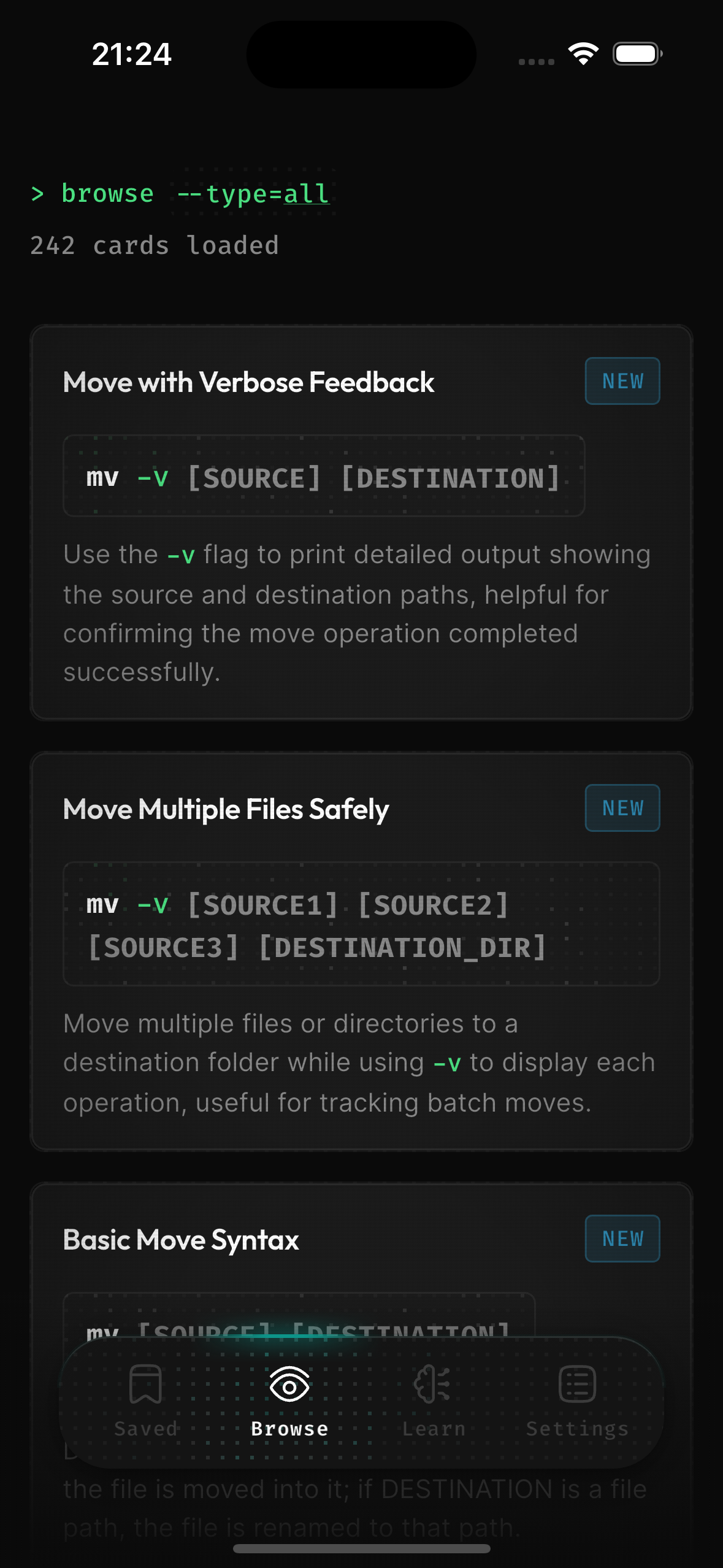
Terminaster can hold those commands, break a dense command into smaller learning cards, and bring them back for short reviews. The Browse area is useful when you want examples beyond your own history, but your own work should remain the core curriculum.
Common questions
Frequently asked questions
How long should I practice the terminal each day?
Fifteen focused minutes is enough to make progress. Predicting results and correcting one small task is more useful than passively reading a long command list.
Can I follow this terminal plan on Windows?
Yes, if you use Windows Subsystem for Linux. PowerShell is also a capable shell, but several commands and quoting rules in this Unix-oriented plan are different.
What if I make a mistake?
Pause and inspect the current directory and affected files. Practicing in a disposable folder limits the damage. Avoid elevated privileges and destructive recursive commands until you understand their scope.
Keep learning
Sources and next steps
Related mental models
Absolute vs relative paths
An absolute pathname starts from the filesystem root, while a relative pathname starts from the process's current working directory or another explicitly supplied directory reference.
Standard input, output, and error
A command-line process normally starts with three conventional open streams: standard input for incoming data, standard output for primary results, and standard error for diagnostics.
Pipelines
A pipeline connects the standard output of each command to the standard input of the next, allowing multiple processes to transform a byte stream concurrently.