How to read terminal commands: flags, arguments, pipes, and redirects
Long commands become manageable when you stop seeing one mysterious string and start seeing a sequence of small programs with explicit inputs and outputs.
Reviewed by the Terminaster editorial team · Updated
What you will take away
- Separate the program from its options and positional arguments.
- Read pipelines as stages whose output becomes the next stage’s input.
- Treat quotes, redirects, and placeholders as behavior—not decoration.
- Expand a dense command into one stage per line before trying to memorize it.
Start with the program, options, and arguments
Most commands begin with a program name. The remaining tokens tell that program how to behave and what to operate on. Options often begin with - or --, while positional arguments are interpreted by their order. The exact rules belong to the program, not to the terminal itself.
In grep -Rni --include='*.ts' 'TODO' src, grep is the program. -Rni combines three short options, --include='*.ts' is a long option with a value, TODO is the search pattern, and src is the directory to search.
One command, annotated
grep      -Rni        --include='*.ts'   'TODO'      src
PROGRAM OPTIONS OPTION + VALUE PATTERN PATHThen identify shell operators
The shell interprets operators before it launches programs. A pipe sends one program’s standard output to the next program’s standard input. A > redirect writes output to a file, replacing that file; >> appends instead. && runs the next command only if the previous command succeeds, while || runs it after failure.
These operators create control flow and data flow. Read them as verbs: pipe into, write to, then on success, or on failure.
- grep searches and prints matching lines.
- | sends those lines to head.
- head keeps the first 20 lines.
- > writes those 20 lines to todo-sample.txt.
Read this as three stages
grep -Rni --include='*.ts' 'TODO' src \
  | head -n 20 \
  > todo-sample.txt
Quotes decide what the shell is allowed to change
Unquoted spaces normally separate tokens, so quotes can keep a phrase together as one argument. Single quotes usually preserve text literally. Double quotes still allow expansions such as $HOME while preventing spaces in the expanded value from splitting the argument.
Wildcards such as * may be expanded by the shell before a program starts. In --include='*.ts', the quotes deliberately pass the pattern to grep instead of asking the shell to replace it with filenames in the current directory.
Compare the shell’s role
printf '%s\n' '$HOME'     # prints the characters $HOME
printf '%s\n' "$HOME"     # prints the expanded home path
printf '%s\n' *.md        # the shell expands matching names first
Distinguish literal syntax from placeholders
Documentation often uses names such as [FILE], <pattern>, or PATH to show where your value belongs. Those brackets are usually notation, not characters to type. Confirm the convention used by the source, then replace the placeholder with a real, safely quoted value.
Before running an unfamiliar command, ask four questions: Which program starts? Which tokens are options? Which paths or values are inputs? Which operators can change files or decide whether another command runs?
Use a breakdown when a command is worth keeping
When a command solves a recurring problem, save the reusable shape rather than only the exact historical line. Keep one concrete example and one sentence that explains the effect of each important option.
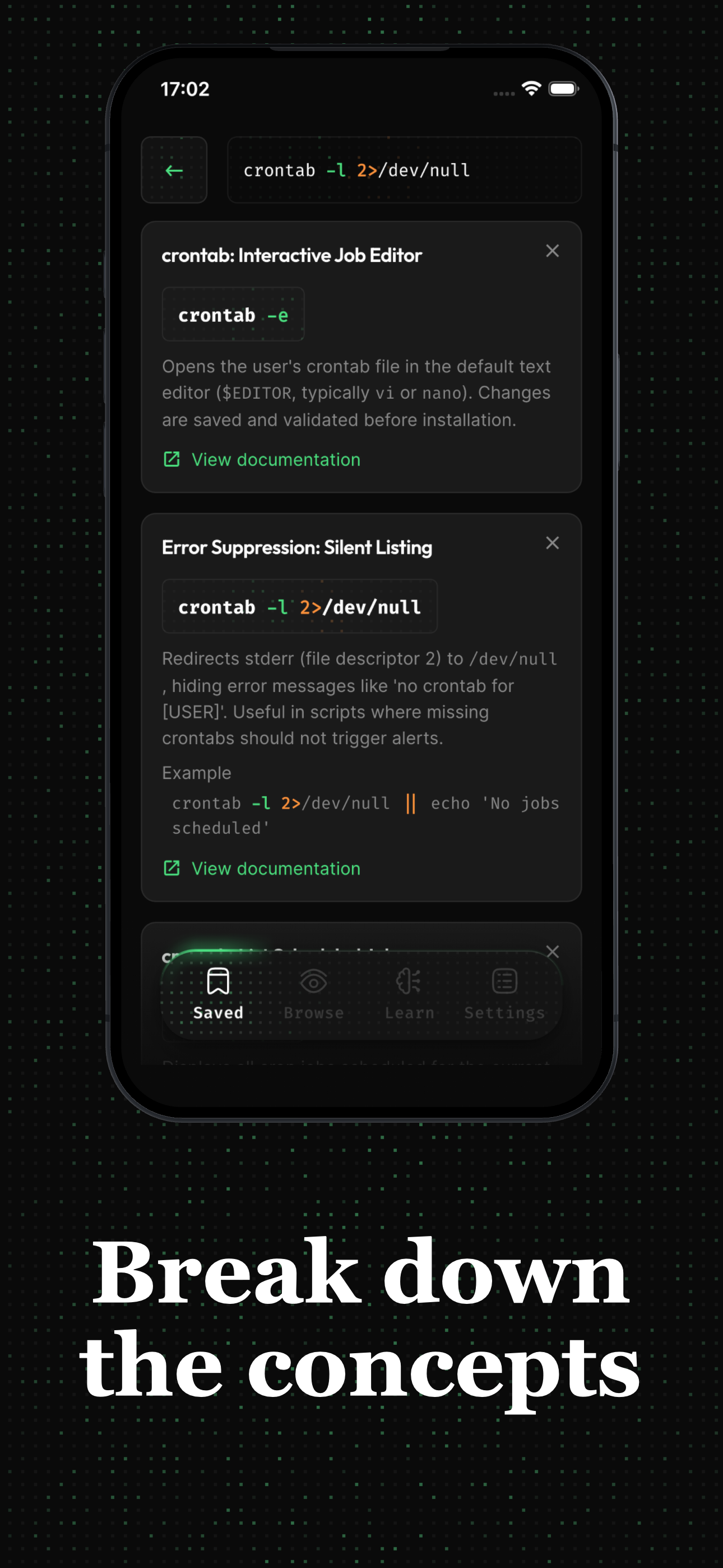
Terminaster turns a saved command into smaller cards so flags, placeholders, and variations can be reviewed independently. You should still verify generated explanations against the tool’s own documentation, especially for commands with destructive effects.
Common questions
Frequently asked questions
What is the difference between a flag and an argument?
A flag or option modifies a program’s behavior, often using a - or -- prefix. An argument supplies a value or target, such as a path or search pattern. Some options also take their own argument.
Does a pipe save output to a file?
No. A pipe sends output to another process. Use > to replace a file with output or >> to append. The next process in a pipeline may still write files as part of its own behavior.
Should I type brackets shown in command examples?
Usually no. Square or angle brackets often mark placeholders or optional values in documentation. Check the source’s notation and replace the placeholder with your real value.
Keep learning
Sources and next steps
Related mental models
Command anatomy
A shell command is a sequence of words that identifies a command to run and supplies its options, option values, and positional arguments according to that command's interface.
Redirection
Redirection is shell syntax that opens, closes, or duplicates file descriptors for a command before that command begins executing.
Quoting and escaping
Shell quoting is syntax the shell consumes while building command arguments. Single quotes preserve every enclosed character literally; double quotes still allow parameter, command, and arithmetic expansion while suppressing word splitting and pathname expansion; an unquoted backslash protects the next character, except that backslash-newline continues the line.