How to save a terminal command in Terminaster
Terminaster works best when capture is quick and selective. This walkthrough shows the desktop shortcut, manual entry, CLI capture, and the cleanup that makes a saved command reusable.
Reviewed by the Terminaster editorial team · Updated
What you will take away
- Select command text anywhere on Mac and use the configurable save shortcut.
- Add context that explains the task, not just the syntax.
- Remove secrets and replace one-off values with clear placeholders.
- Check the generated cards before adding more.
Choose a command that is worth another encounter
Save a command when it solved a problem you expect to face again, contains syntax you repeatedly forget, or teaches a reusable pattern. Skip trivial commands you already know and one-off lines whose value comes only from a temporary path.
Never save passwords, access tokens, private keys, connection strings, or sensitive customer data. Replace sensitive and machine-specific values before capture.
Prefer a reusable shape
# Too specific
ssh deploy@192.0.2.10 -i ~/.ssh/company-production

# Better learning shape
ssh [USER]@[HOST] -i [IDENTITY_FILE]
Option 1: capture selected text on Mac
You can change the save shortcut in Terminaster Settings if it conflicts with another app. The global shortcut is meant to remove the copy, switch, paste routine without removing the review step.
- 1Sign in to the Terminaster desktop app and leave it running.
- 2Select the full command in Terminal, a browser, documentation, or another app.
- 3Press Command-Shift-Space, the default global shortcut.
- 4Review and edit the captured text in the Terminaster panel.
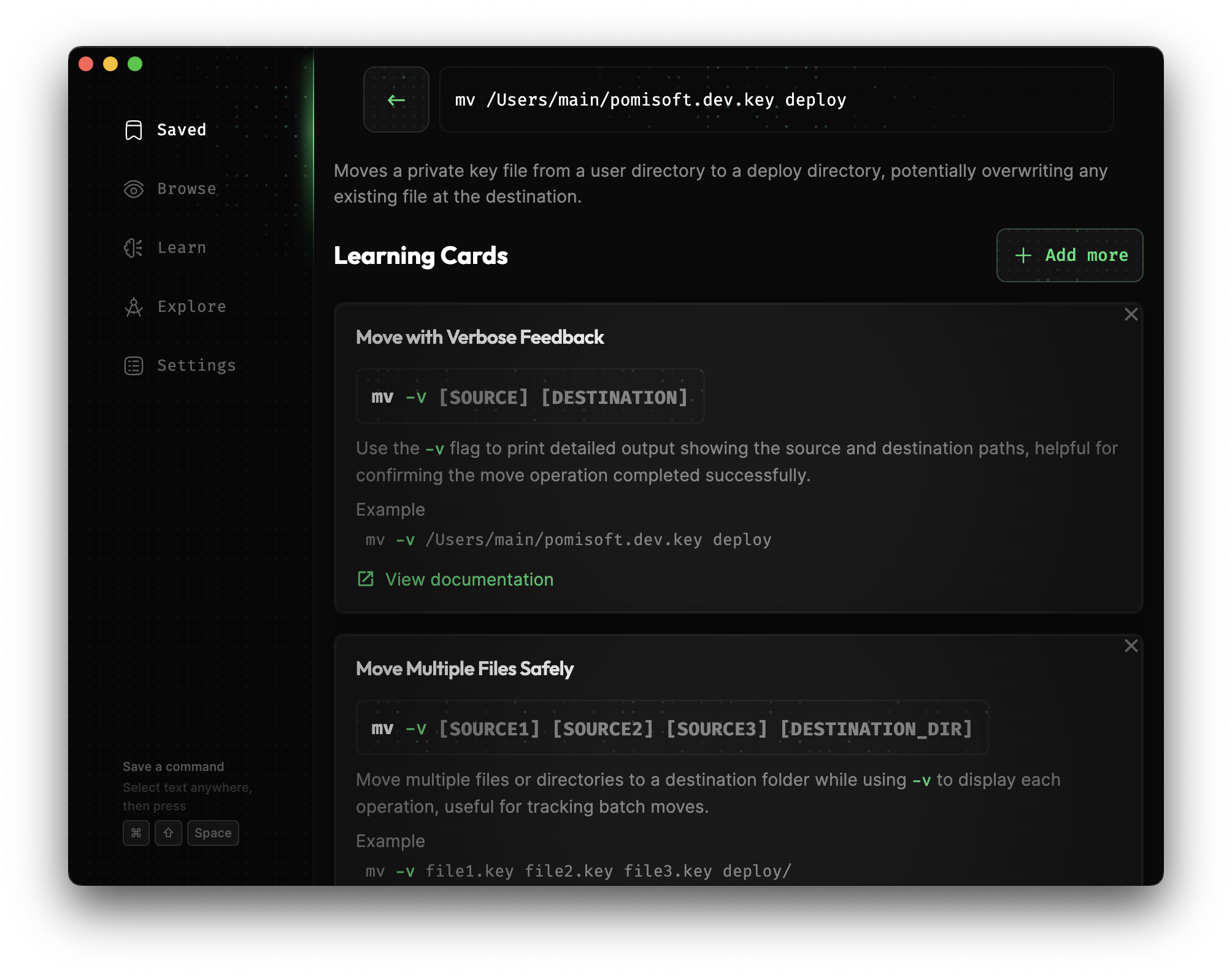
- 5Add a short description of the problem the command solved, then save.
Option 2: enter a command manually or from the CLI
Manual entry is useful on mobile or when you want to clean the command before saving it. On macOS, Terminaster also includes a CLI for capture without leaving the terminal.
Quote the entire command when it contains spaces or shell operators so your current shell passes it as one argument to the Terminaster CLI. The optional context should explain the task or surprising behavior.
Save from the Terminaster CLI
terminaster save \
  --context "Find the largest log files before cleanup" \
  "find [LOG_DIR] -type f -name '*.log' -print0 | xargs -0 du -h | sort -h"
Check the result before moving on
- 1Confirm the saved command still represents the task you intended.
- 2Read each generated explanation and compare safety-critical details with --help or official documentation.
- 3Remove cards that are redundant or tied to irrelevant values.
- 4Add a concrete example if the reusable placeholders are too abstract.
- 5Stop after the useful cards; more cards are not automatically better.
Common questions
Frequently asked questions
What is the default save shortcut on Mac?
The default shortcut is Command-Shift-Space. You can change it in Terminaster Settings if another app already uses that combination.
Can I save more than one command from the CLI?
Yes. The Terminaster CLI accepts multiple command arguments. Quote each command separately so spaces and shell operators remain part of the saved command.
Does Terminaster run the command I save?
No. Saving captures command text and context for learning. You remain responsible for running and verifying commands in the appropriate environment.
Keep learning
Sources and next steps
Related mental models
Command anatomy
A shell command is a sequence of words that identifies a command to run and supplies its options, option values, and positional arguments according to that command's interface.
Shell parameter expansion
Parameter expansion replaces forms beginning with $ with a parameter's value or a transformation such as a default, required-value check, length, or pattern removal.
Quoting and escaping
Shell quoting is syntax the shell consumes while building command arguments. Single quotes preserve every enclosed character literally; double quotes still allow parameter, command, and arithmetic expansion while suppressing word splitting and pathname expansion; an unquoted backslash protects the next character, except that backslash-newline continues the line.